
Level Threshold
[Disable]
[Level 1]
[Level 2]
[Level 3]
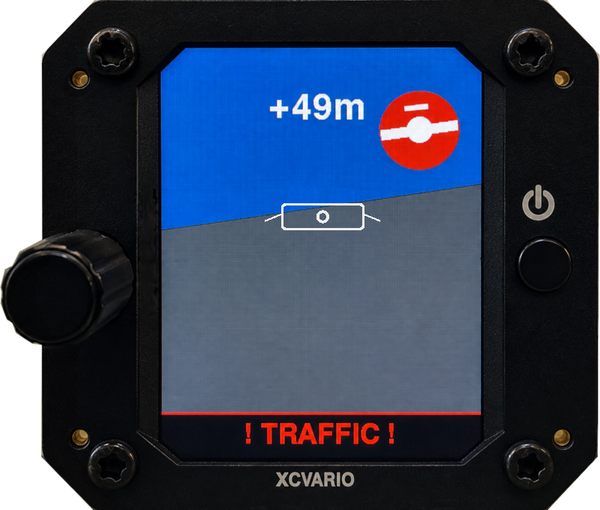
When a FLARM device is connected, the variometer display becomes secondary in priority during imminent collision situations. The connected device can then serve as both an acoustic and optical FLARM warning system, similar to common FLARM secondary displays, but providing more detailed information.
FLARM warnings are divided into three levels, corresponding to the time remaining before a potential collision:
- Level 1: Warns already of a potential collision 13–18 seconds before impact. This is the default setting and is triggered at the lowest alert level from the FLARM.
- Level 2: Warns 9–12 seconds before potential collision, indicating an increasing threat.
- Level 3: Warns 0–8 seconds before potential collision, representing immediate danger.
Note: Refer to your specific FLARM device documentation for detailed behavior of alarm levels.
Timeout
5 sec
FLARM Alarm Display Duration
This setting controls how long the FLARM alarm warning remains visible on the screen after the alarm has been triggered.
- Default Duration: 5 seconds.
- Combined with the active alarm time, this is usually sufficient to read and interpret the display safely.
- Adjustable Duration:
- Longer display time: Useful for feature testing, training, or detailed analysis of traffic situations.
- Shorter display time: May be advantageous in competition settings, for example, when circling in a thermal with multiple gliders, to reduce screen clutter and maintain focus.
This setting allows pilots to balance information visibility with operational efficiency, depending on the flying situation.
Check
1. [Cancel]
2. [Cross Deeper]
3. [Cross Higher]
4. [Head-on Deep]
5. [Overtake Left]
6. [Cross Level]
7. [Circling Left]
The FLARM alarm simulation allows pilots to trigger and view different types of FLARM warnings to understand how they appear on the display and practice interpreting them. Each simulation option represents a specific traffic pattern and it’s traffic display.
Simulation Options:
- Cancel the current FLARM simulation, nothing happens.
- Another aircraft is crossing your flight path at a lower altitude than your own from the left. The potential conflict is “below” you.
- Another aircraft is crossing your path at a higher altitude from the right. The traffic is “above” your current level.
- head-on approach with another aircraft that is below your altitude. This is a more urgent alert as the risk of collision is significant if paths are not adjusted.
- Another aircraft is overtaking, coming from behind on your left side. You should monitor and maintain safe separation.
- Another aircraft is crossing your flight path at approximately the same altitude. This is typically considered a medium-priority alert, requiring awareness and possible avoidance.
- You are approaching a in a left circle climbing glider. Relative speed changes all of a sudden when the other aircraft turns towards you.


