
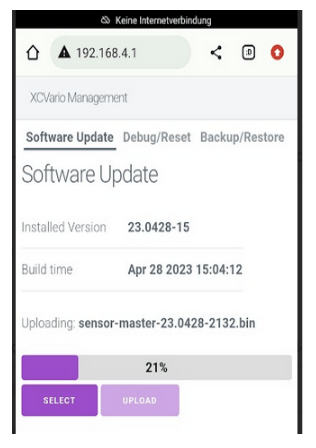
An important feature of the XCVario Pur is system management via the device’s integrated WiFi access point. To activate the web interface, enable the XCVario WiFi under:
System → Software → Start Webserver.
Once WiFi is activated on the XCVario, you can connect to the “XCVario OTA” access point. After a successful connection, the XCVario management page can be accessed by navigating to:
in your web browser. On this page, you will find:
- Software Update – update the device firmware easily over the air.
- Debug / Reset – perform a factory reset (see the separate chapter under “Setup”) or access a core file for debugging purposes.
- Backup / Restore – create a backup of your current configuration on a mobile device, tablet, or laptop, and restore it back to the XCVario Pur when needed.
This system allows for easy maintenance, troubleshooting, and configuration management without the need for physical connections or additional software.
Software Update #
Under the Software Update tab, the currently installed software version is displayed, along with details such as the exact build time of the package. Using [SELECT], you can choose a new software file on your smartphone, tablet, or PC, and then upload it to the device via [UPLOAD].
Debug/Reset #
The operation is straightforward. After pressing the [FACTORY RESET] button, you must confirm the action in a separate dialog. The device will then be reset to factory settings. All user settings will be lost unless a backup of the configuration has been created (see the next section).
The [DOWNLOAD CORE DUMP] button generates a file that can be sent to the manufacturer for troubleshooting if the device experiences malfunctions during operation—for example, when using new features still in alpha (test) mode. The core dump is created only if the system encounters a fatal error and the software restarts. Once uploaded to the XCVario, the core file is automatically deleted.
Backup/Restore #
The operation is intuitive. The [BACKUP] button saves all settings that differ from the factory defaults—including compass calibration and any deviation tables—into a file that can be stored on a mobile phone, tablet, or PC.
The [RESTORE] button loads a previously saved configuration file back into the device. This is especially useful when replacing a device, upgrading to a newer model, or after performing a factory reset. By default, the restore process does not perform a factory reset, meaning any settings not included in the backup remain unchanged. If you want to apply only the settings from the backup, a factory reset must be performed beforehand.
This approach provides flexibility: you can either completely restore the device to a previous state or merge the backup with the existing configuration.


